
Trading 212
Automatic import with an API key
With the automatic import, Taxify downloads the account history from Trading 212 itself, with an API key. You create the key one time in the Trading 212 app and save it in Taxify. Then you load the trades, the dividends and the interest with one button, without CSV files.
The automatic import is part of the paid plans. On the free plan, use the manual import. See the plans
What the automatic import does
- Taxify asks Trading 212 for the same CSV export that you would otherwise download by hand. You do not download or upload a file.
- You load the full history in one step: Taxify asks for one export for each year.
- The "Sync now" button loads the new trades, dividends and interest since the last sync. If you want, Taxify loads them each morning by itself.
- You can use the manual and the automatic import together. Taxify finds a trade that it already has and does not save it again.
1Open the Trading 212 settings
Log in to Trading 212 (the web app or the mobile app). At the top left, switch to the Invest account.
- 1.Open the main menu (☰).
- 2.Select Settings.
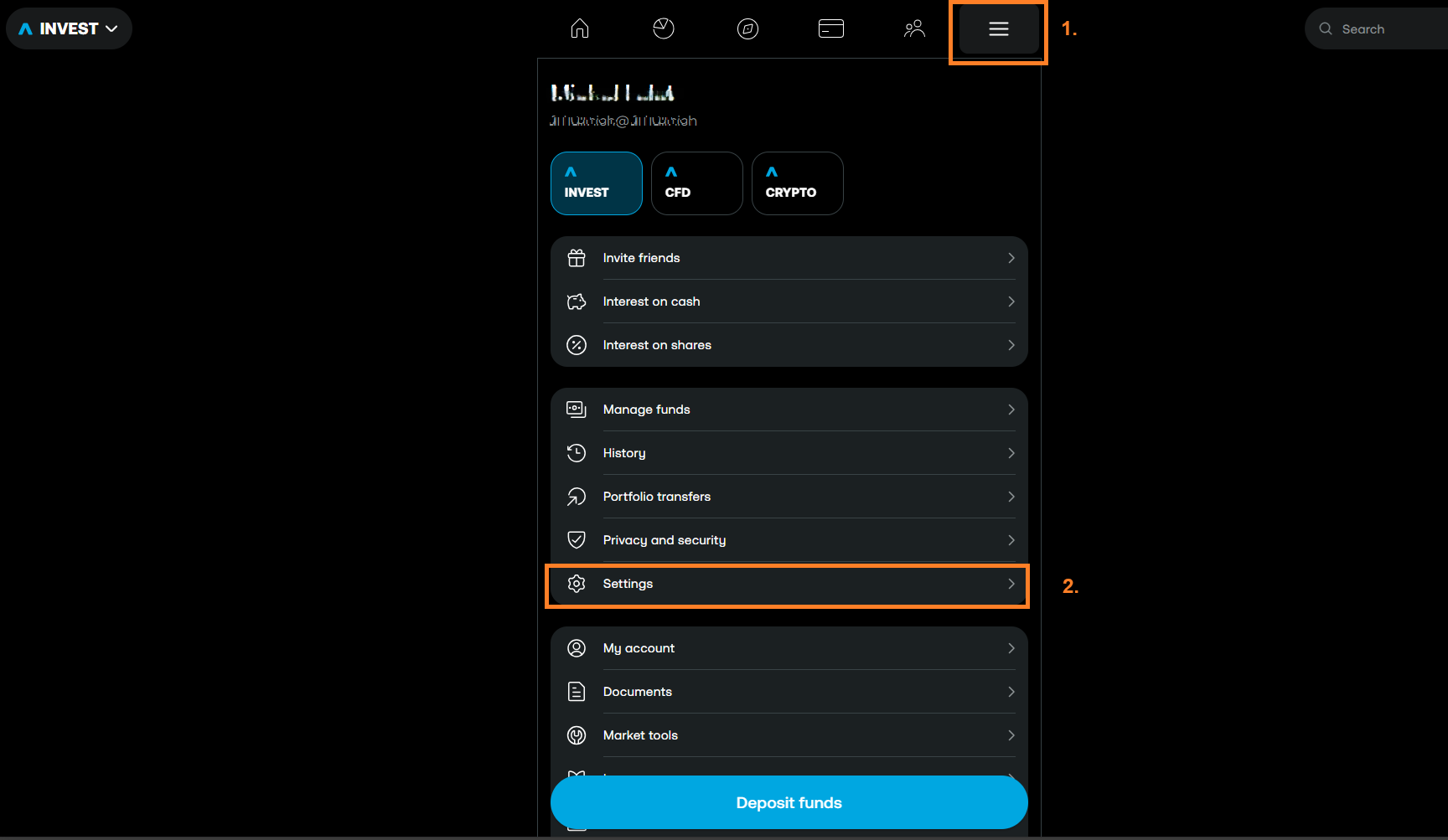
Swipe the screenshot to the side, or tap it to make it larger.
2Open API (Beta)
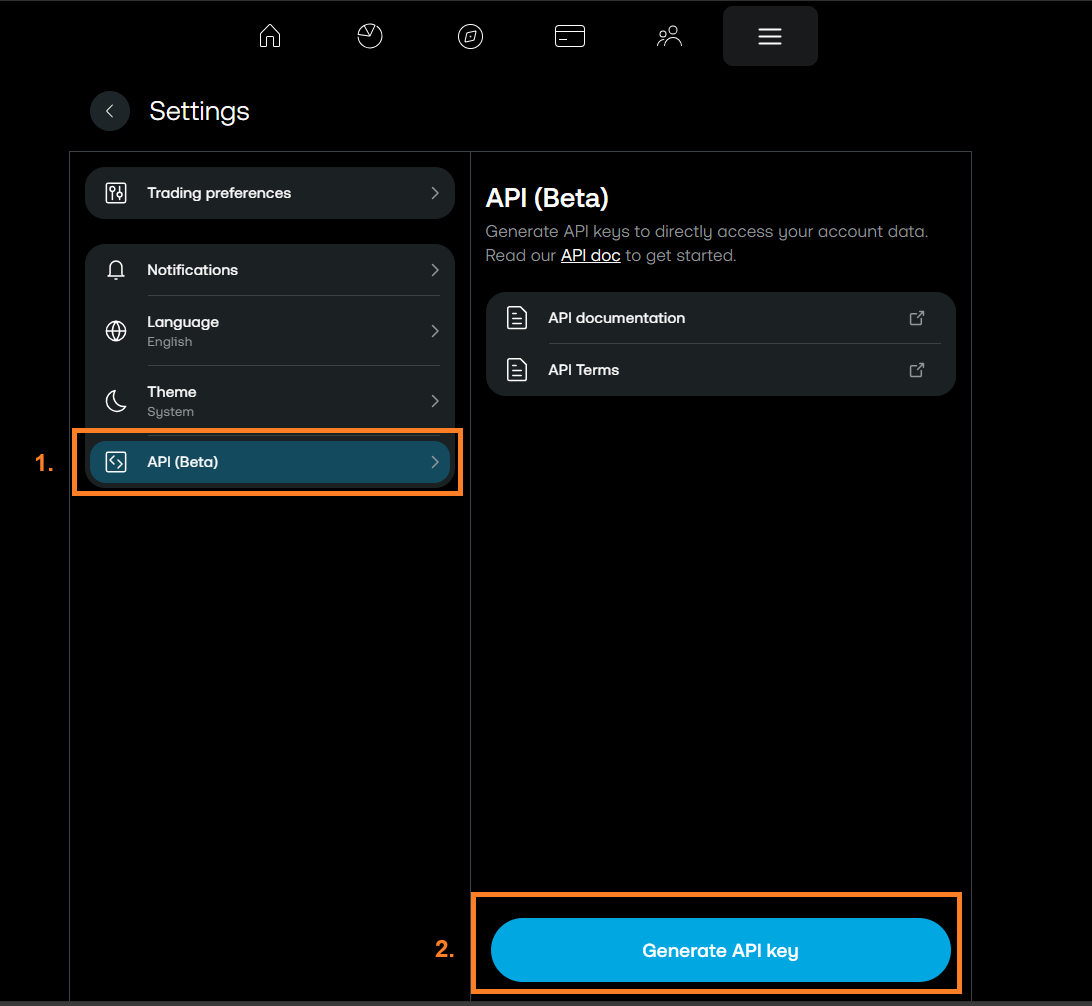
- 1.In the settings, select API (Beta). On the first use, accept the risk warning.
- 2.Click Generate API key.
3Create the API key
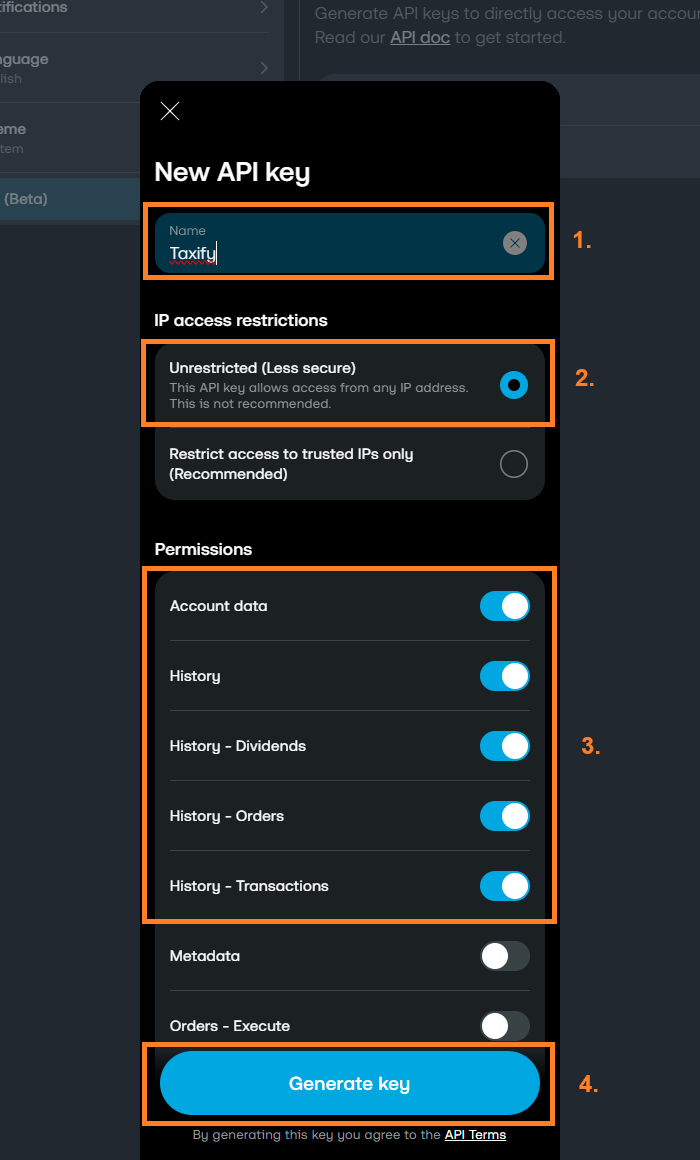
- 1.In the Name field, enter a name for the key, for example "Taxify".
- 2.In IP access restrictions, set the access as the note below the list of permissions tells you.
- 3.In Permissions, enable only the permissions of the list below.
- 4.Click Generate key.
Enable only these permissions. Each of them only reads data:
- Account data
- History
- History - Dividends
- History - Orders
- History - Transactions
Keep the other permissions off: Taxify does not need them. The list continues below the Generate key button: scroll it down and make sure that all other permissions are off. Most of all, do not enable Orders - Execute and Pies - Write: they let the key place orders and change the Pies.
4Copy the key
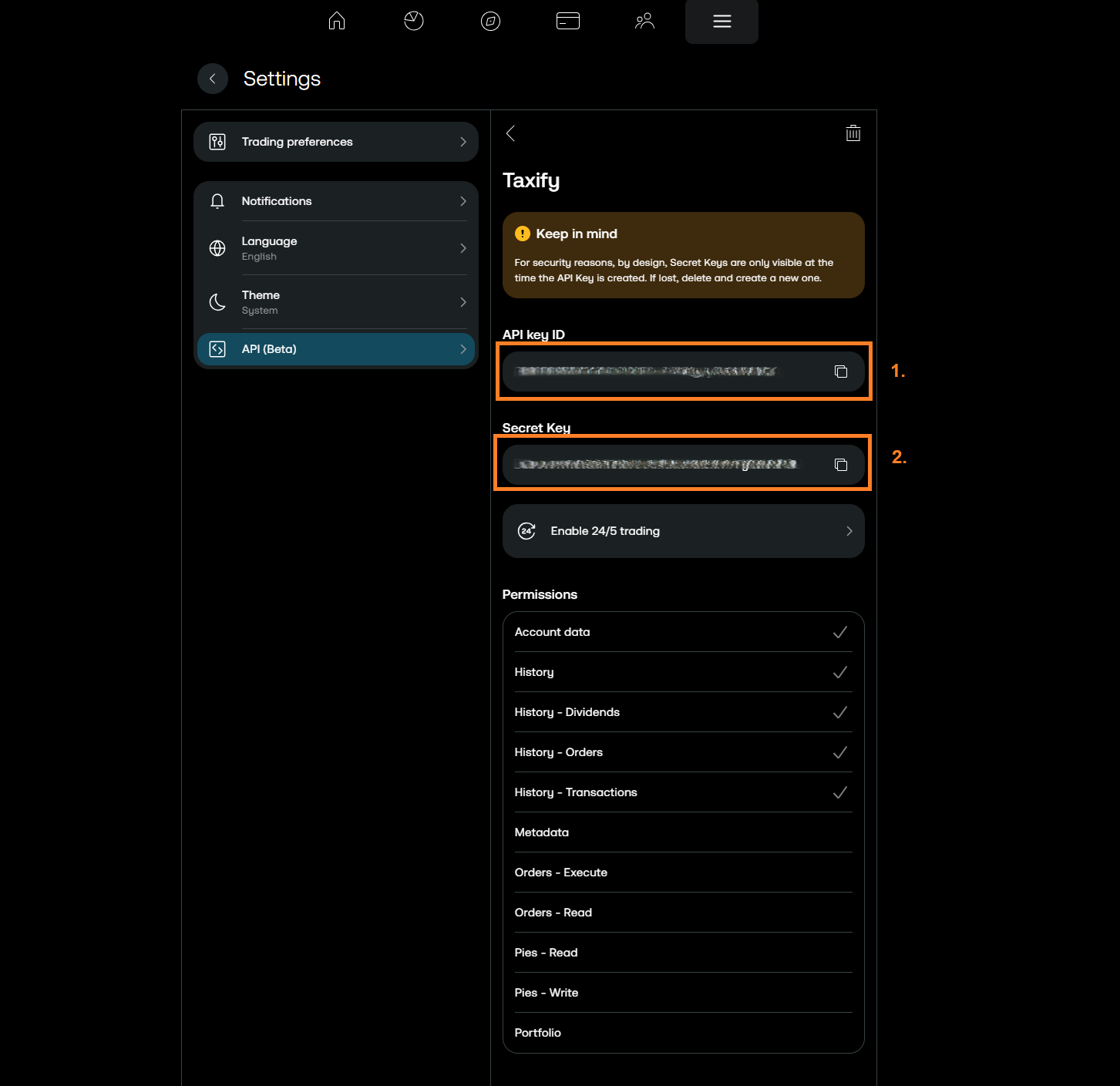
- 1.Copy the API key ID (the copy icon at the right of the field).
- 2.Copy the Secret Key.
Below the key, Trading 212 shows the Permissions list. Make sure that only the five permissions of step 3 have a tick. If another permission has a tick, delete the key (the bin icon at the top right) and create a new one.
5Connect Trading 212 in Taxify
- 1.In Taxify, open Accounts and select your Trading 212 account of the Invest type. If you do not have one yet, create it and select the Invest type.
- 2.Go to the Settings tab, to the Trading 212 sync part.
- 3.Paste the API key ID and the Secret Key into the fields of the same names.
- 4.Click "Connect and test". Taxify makes sure that the key works, has the necessary permissions and belongs to the correct account. It saves nothing. The test takes some minutes.
6Load the history
- 1.After a good test, select the years that you want to load. Start with the year when you opened the account.
- 2.Select the earlier years too. With the FIFO method, a sale is matched with the oldest purchase, which can be several years old.
- 3.Click "Load the selected years". Taxify loads one year after the other; the Import tab shows the progress.
7Sync
- 1.On the Import tab, click "Sync now".
- 2.Taxify loads the period since the last sync. The page shows the progress and the result.
- 3.The result shows the new trades, dividends and interest, the trades that Taxify already had, and the warnings, if any.
- 4.Do you not want to click? On the Settings tab, turn on the "Automatic sync" switch. Taxify then loads the new data each morning. The "Sync now" button continues to work. You can turn the switch off at any time.
Security: the key only reads
The API key is not your Trading 212 password. It has only the permissions that you enable when you create it. With the permissions of this guide, it only reads the account data and the account history.
What the key allows
- Read the account summary (Account data): the account number, the currency and the balances. Taxify uses only the account number from it: it makes sure that the key belongs to the correct account in Taxify.
- Read the account history: the orders (buys and sells), the dividends, the interest and the cash transactions.
- Request and download the CSV export. It is the same file that you would otherwise download by hand.
What the key does not allow
- Place or cancel orders, that is, trade.
- Deposit or withdraw money.
- Change the account settings, the Pies or the personal data.
- Log in to the Trading 212 app.
How Taxify protects the key
- Taxify stores the API key ID and the Secret Key encrypted (AES-256). The decryption key is kept apart from the database, so the database alone does not reveal them.
- The key never goes back to the browser. In the app, you see only its last four characters. The Taxify support cannot see it either.
- The key is not in the logs or in the error reports. The server uses it only for the encrypted connection (HTTPS) to Trading 212.
How to stop the access
- In Taxify: on the Settings tab, click "Disconnect the sync". Taxify deletes the key at once. The loaded trades stay.
- In Trading 212: open Settings → API (Beta), click the key and select the bin icon at the top right. The key stops at once.
- When you delete your Taxify account, Taxify also deletes the key.
If something does not work
- Trading 212 did not accept the key
- Make sure that you copied all of the API key ID and all of the Secret Key, without spaces. If you lost the Secret Key, delete the key, create a new one and save it in Taxify.
- The key does not have a permission
- The key must have the Account data and History permissions on (also History - Dividends, History - Orders and History - Transactions). Create a new key as step 3 tells you, and save it in Taxify.
- The key belongs to another Trading 212 account
- The account in Taxify is already linked to another Trading 212 account. Paste a key of that account. For another Trading 212 account, create a new account in Taxify.
- You do not see API (Beta) in the settings
- Trading 212 offers the API only for the Invest account. Switch to the Invest account and open Settings again.
- Trading 212 refused the address of the server
- The key is limited to IP addresses, and the Taxify server is not one of them. Create a new key and set IP access restrictions as step 3 tells you.
- The load takes a long time
- Trading 212 lets Taxify check the status of an export only one time in a minute, and it requires a pause between two exports. For several years, the load takes some minutes. Taxify continues by itself.
- Trading 212 did not give the export now
- Trading 212 is busy for a moment. Try the sync again later.