
Trading 212
How to export the account history to a CSV file
1Open the account history
Log in to Trading 212. At the top left, switch to the Invest account (1). Open the main menu ☰ (2) and select History (3).
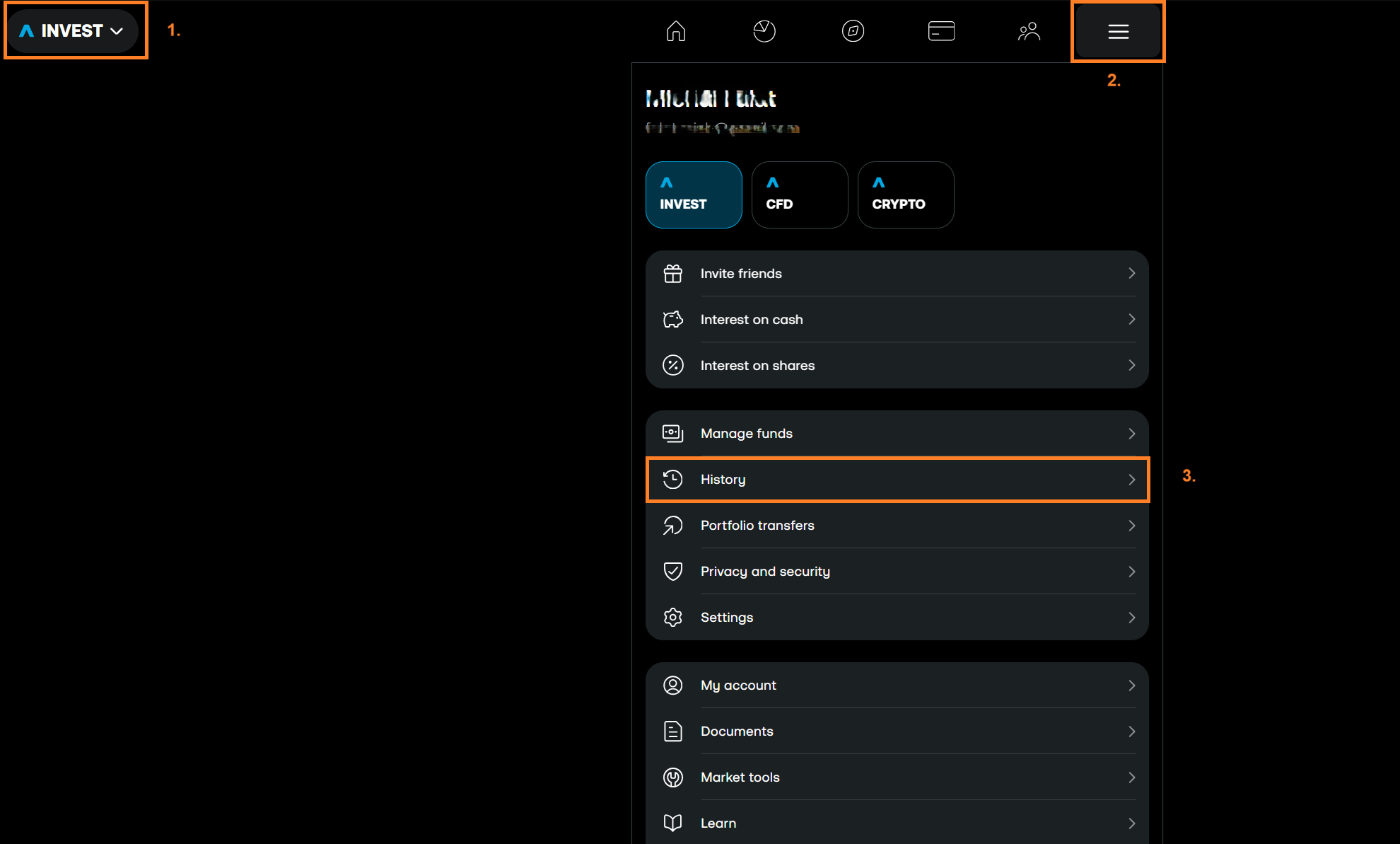
Swipe the screenshot to the side, or tap it to make it larger.
2Click the export button
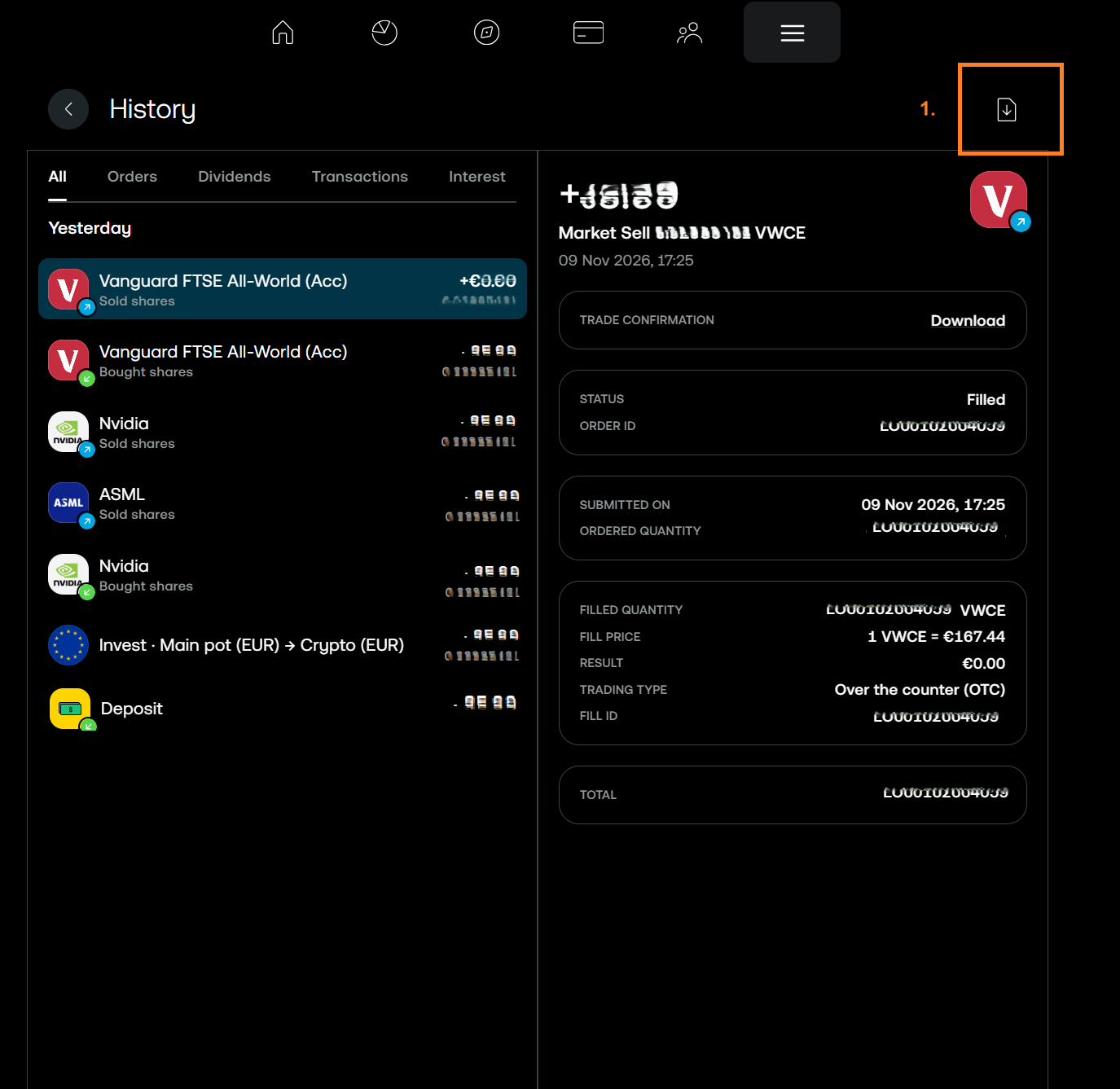
In the History window, click the export button at the top right (1). It is the icon of a document with a down arrow. The Export history window opens.
3Set the period and the data
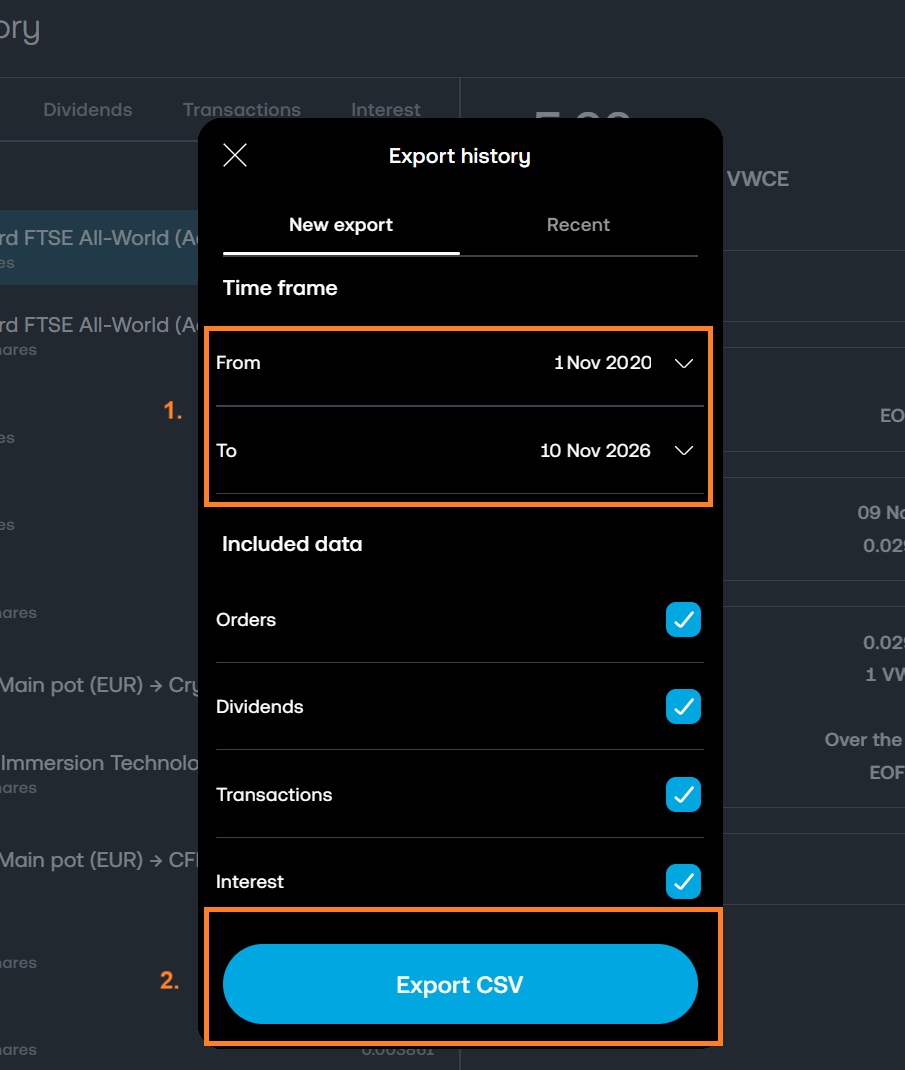
On the New export tab, in Time frame, set From to the day when you opened the account, and To to today (1). In Included data, keep all items ticked: Orders, Dividends, Transactions and Interest. Then click Export CSV (2).
4Download the file
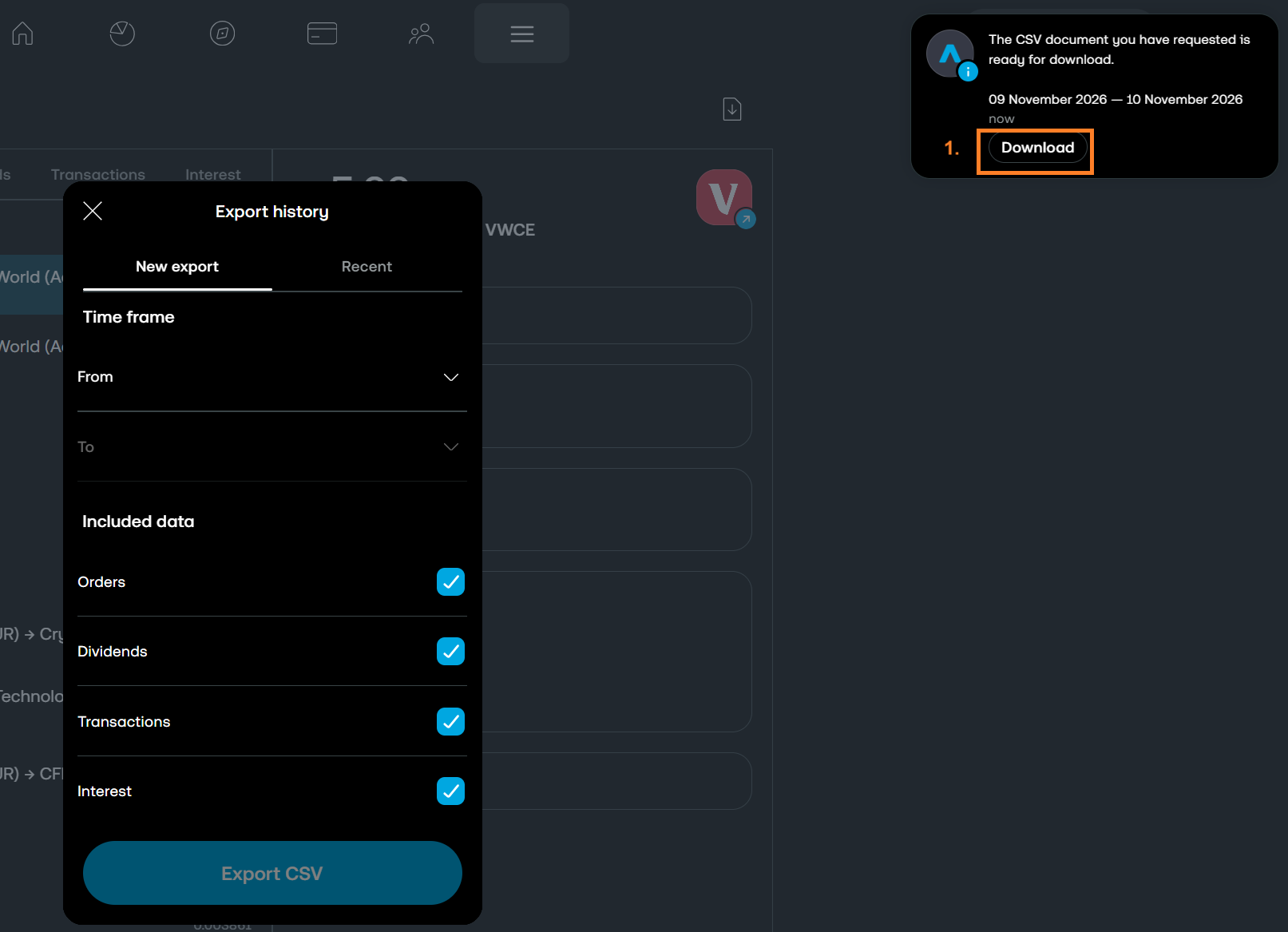
Trading 212 prepares the file, which can take some minutes. Then it shows a message that the CSV document is ready. In the message, click Download (1). You can also find the completed exports on the Recent tab of the Export history window.
5Upload the statement to Taxify
- 1.In Taxify, open Accounts and select your broker account. If you do not have one yet, create it.
- 2.On the Import trades tab, drop the files into the marked area or select them with the button. Upload every year.
- 3.When the processing is complete, you see the imported trades and you can start the tax calculation.
Tips
- For each Trading 212 account, create a separate account in Taxify and select its type: Invest, CFD or Crypto. Taxify does not accept a file of the CFD account in an account of the Invest type, and the opposite.
- Trading 212 does not export the Crypto account. Enter its trades in Taxify by hand, in an account of the Crypto type.
- Periods that overlap are not a problem: on the next import, Taxify skips the trades that it already has.
- If a sell has no matching buy, the export of an earlier period is missing. Import it.