
Coinbase
Guide to download the transaction statement and the Coinbase Pro reports
1Open the account settings
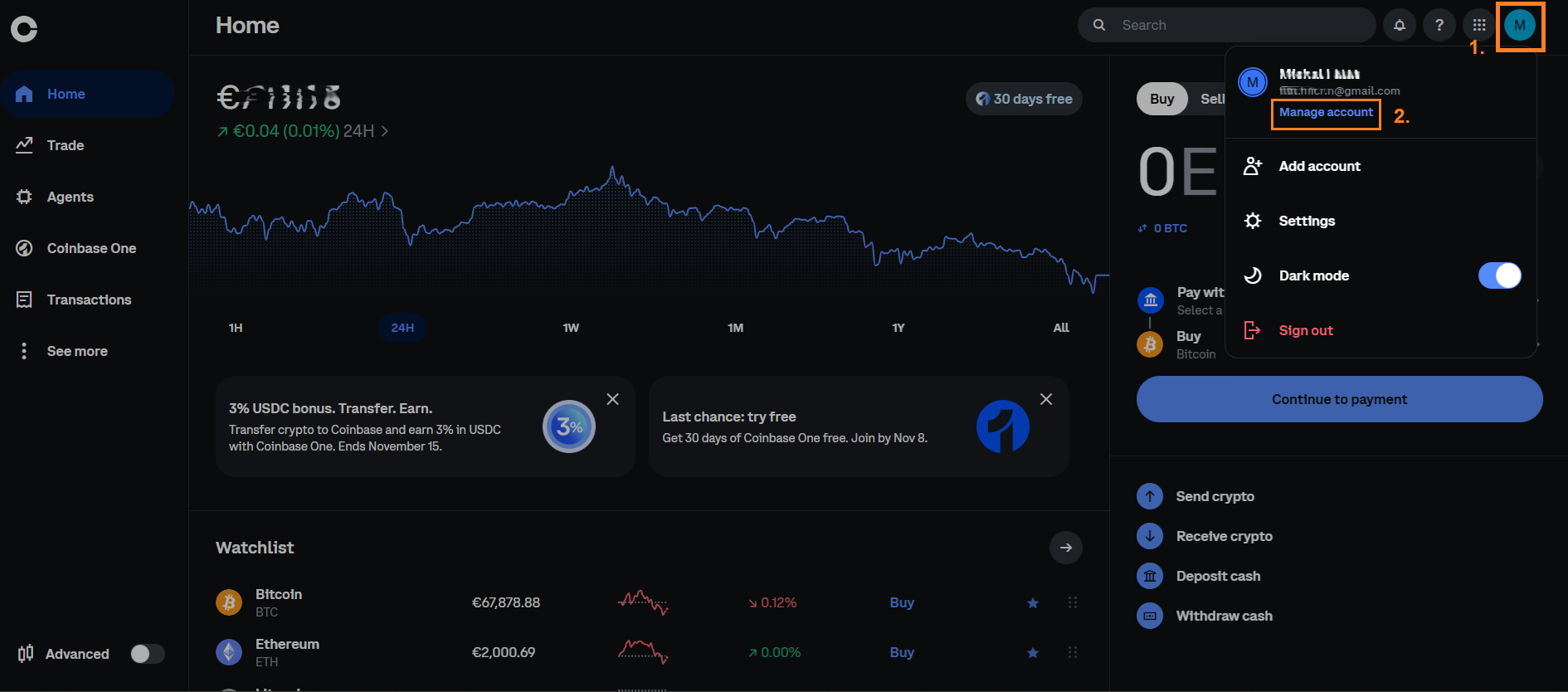
Log in at coinbase.com. At the top right, click your icon (1) and select Manage account in the menu (2).
Swipe the screenshot to the side, or tap it to make it larger.
2Download the transaction statement
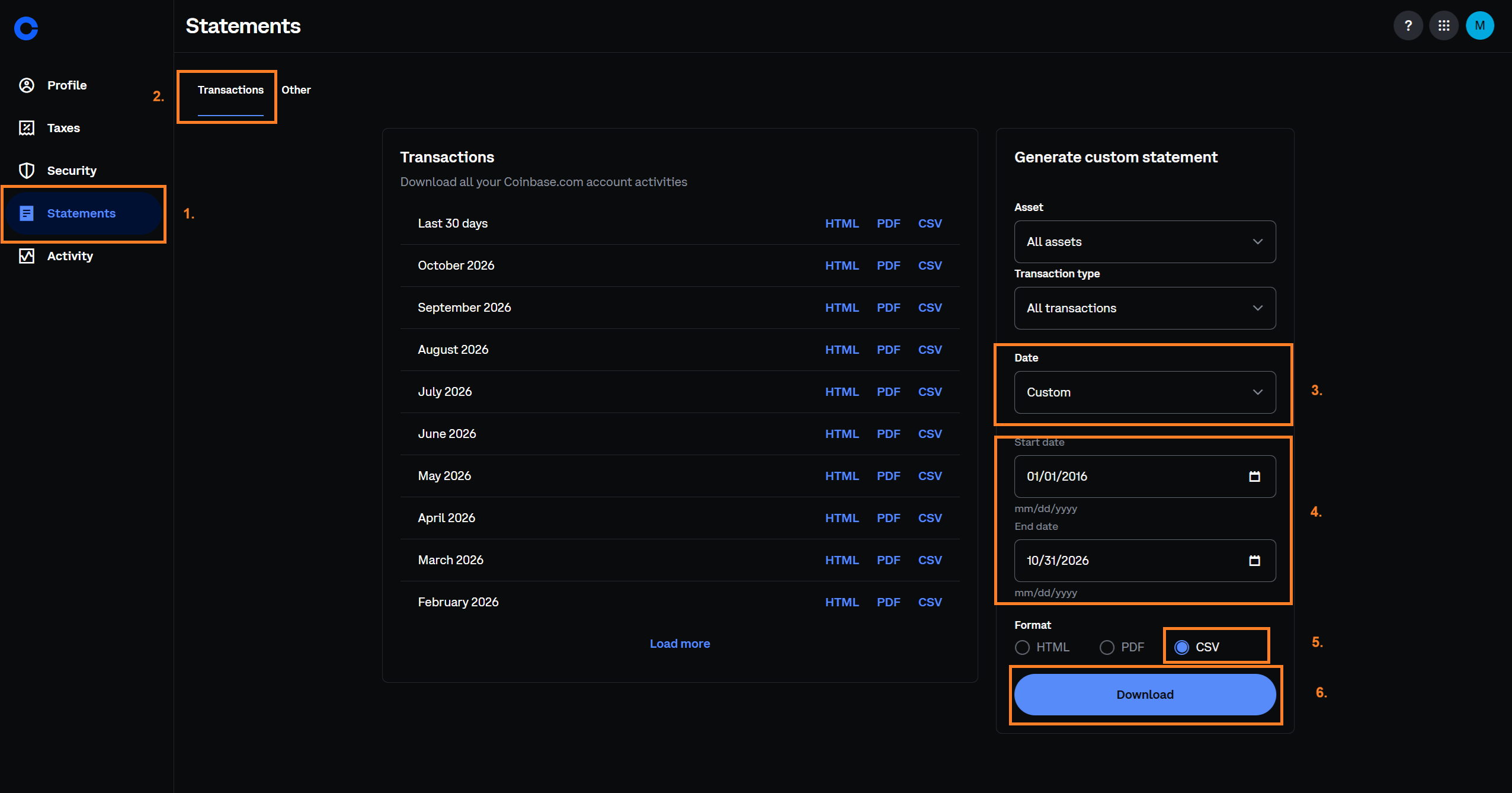
In the menu on the left, select Statements (1) and open the tab Transactions (2). In the panel Generate custom statement, keep All assets and All transactions in the fields Asset and Transaction type. In the field Date, select Custom (3). In the field Start date, enter a day before your first trade, for example 01/01/2016. In the field End date, enter the date of today (4). In Format, select CSV (5) and click Download (6).
Swipe the screenshot to the side, or tap it to make it larger.
3Download the Coinbase Pro reports
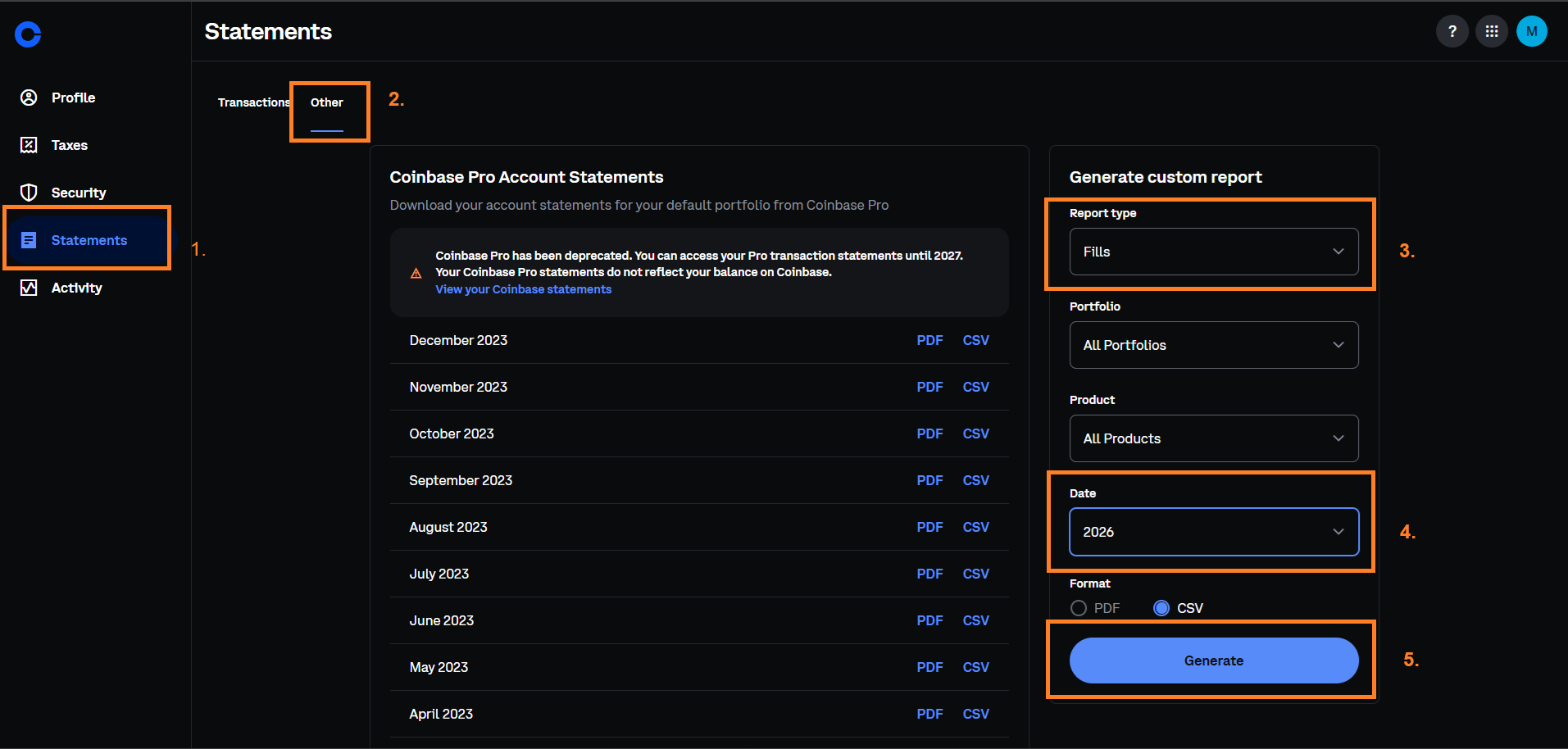
You need this step only if you traded on Coinbase Pro (formerly GDAX). In the menu on the left, select Statements (1) and open the tab Other (2). In the panel Generate custom report, select Fills in the field Report type (3). Keep All Portfolios and All Products in the fields Portfolio and Product. In the field Date, select a year (4). In Format, select CSV and click Generate (5). Do these steps again for each year in which you traded on Coinbase Pro.
Swipe the screenshot to the side, or tap it to make it larger.
4Upload the statement to Taxify
- 1.In Taxify, open Accounts and select your broker account. If you do not have one yet, create it.
- 2.On the Import trades tab, drop the files into the marked area or select them with the button. Upload every year.
- 3.When the processing is complete, you see the imported trades and you can start the tax calculation.
Tips
- An exchange of one crypto-asset for another (Convert) is a sale of the first crypto-asset. Taxify records a sale and a purchase, and counts the fee as a cost of the sale.
- Crypto-assets that Coinbase gave you for free (Coinbase Earn, Learning Rewards, airdrops, staking) have the cost 0. The tax applies when you exchange them for another crypto-asset or for money.
- For a receipt from another wallet or exchange, the statement gives no cost, so Taxify records no purchase. Until you add the purchase by hand with its real cost, a later sale of these units has no purchase.
- Taxify records a send to another wallet as a move, not as a sale. If you paid with the crypto-asset, change the trade to a sale.
- A rename of a token (for example MATIC to POL) is no sale. Taxify keeps the purchase days and the costs.
- Next year, upload a new transaction statement for the full period. Taxify skips the transactions that it already has.
- The one-year time test and the €500 exemption do not apply to crypto-assets.